Transfer Order Enhancement
Streamline your inventory transfers with Transfer Order Enhancement for Microsoft Dynamics 365 Business Central. This extension brings powerful features to your transfer order process: approval workflows, automatic item reservation, multi-location dimension management, and intelligent quantity defaults.
#Feature Highlights
- Transfer Line Details Factbox — View comprehensive item information directly within transfer orders
- Item Transfer Blocks — Prevent specific items from being transferred between locations
- Default Transfer Quantity — Automate quantity fields to speed up data entry
- Auto Reserve Item — Secure inventory automatically when creating transfer orders
- Multi Dimensions — Maintain dimension integrity across origin and destination locations
- Approval Workflow — Enforce approval processes before transfer execution
#Transfer Line Details Factbox
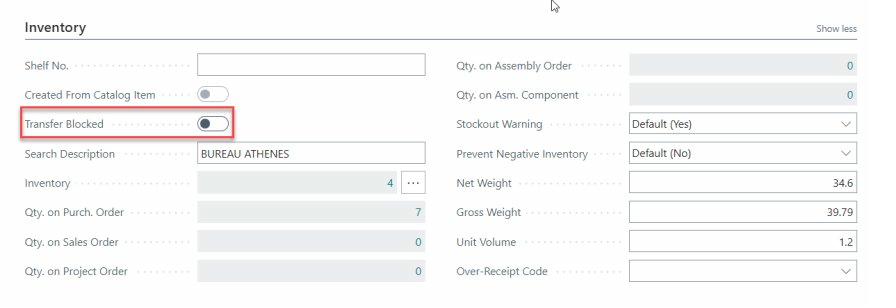
Business Central's standard Sales Line Details factbox provides valuable item insights at a glance. Our extension brings this same capability to transfer orders, giving warehouse staff immediate access to availability, costs, and item attributes without leaving the transfer order page.
#Item Transfer Blocks
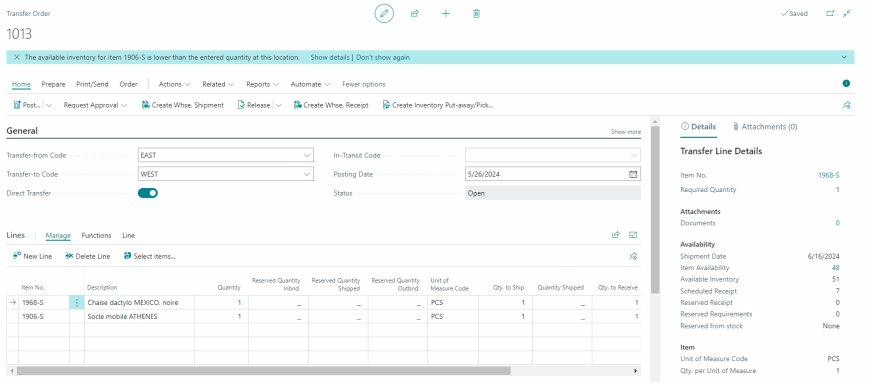
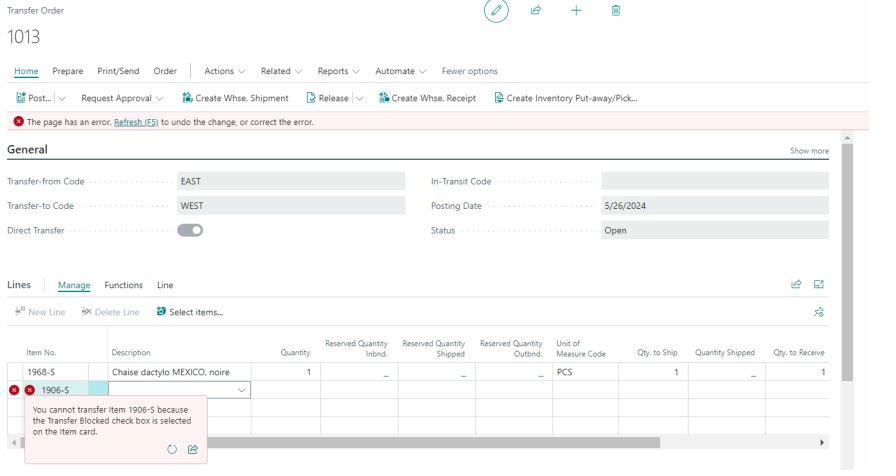
While Business Central allows blocking items for sales or purchases, no such control exists for transfers. This extension fills that gap—mark items as blocked for transfers to prevent accidental or unauthorized movements between locations.
#Default Transfer Quantity
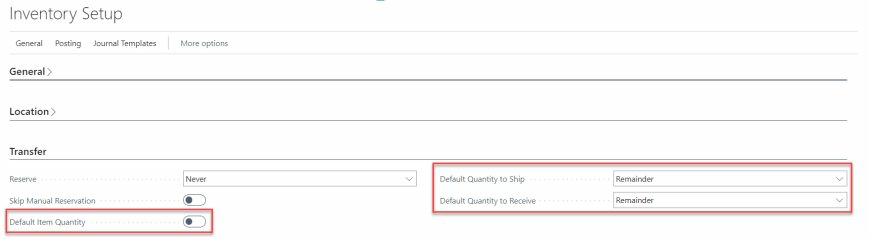
Reduce manual data entry with automatic quantity defaults. Configure once in Inventory Setup:
- Default Item Quantity: Sets the Quantity field to 1 when you fill in the Item No. field
- Default Quantity to Ship: Specifies the default value for the Qty. to Ship field
- Default Quantity to Receive: Specifies the default value for the Qty. to Receive field
#Auto Reserve Item
Prevent inventory conflicts by automatically reserving stock when transfer orders are created. This ensures items designated for transfer aren't accidentally allocated to sales or production orders.
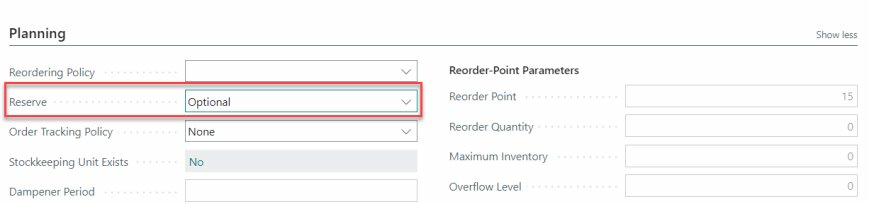
Setup reservation policies on items
The Reserve field on the item card provides the option to configure reservation policies for specific items.
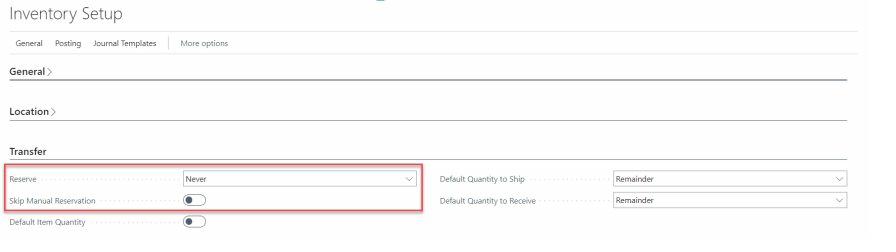
Setup reservation policies for Transfer Order
The Reservation field in the inventory setup establishes the reservation policy for transfer order lines when combined with the item card setting.
#Multi Dimensions
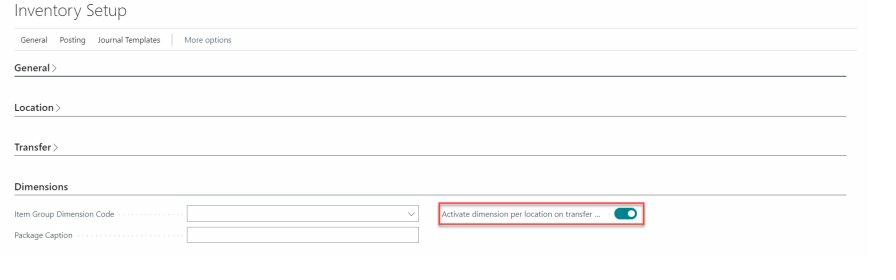
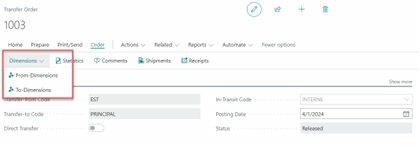
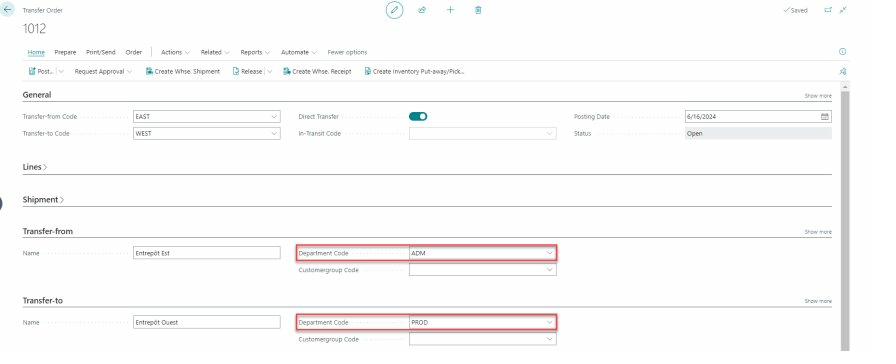
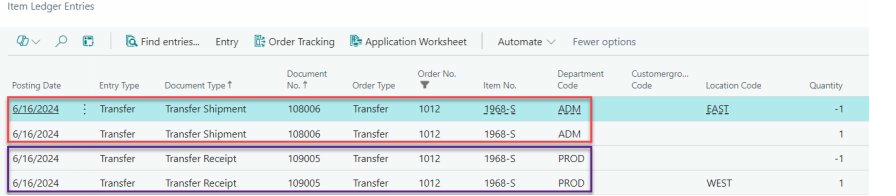
Maintain complete dimension traceability when transferring goods between locations. Each location's dimensions flow through to Item Ledger Entries, Value Entries, and G/L Entries—essential for accurate cost allocation and financial reporting.
#Approval Workflow
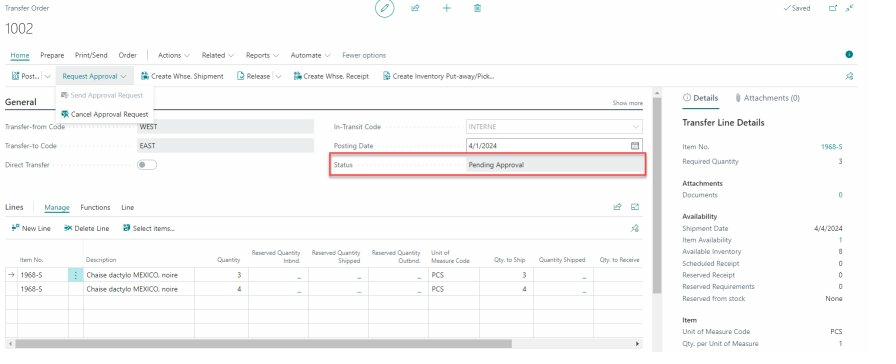
Implement approval controls for transfer orders to ensure proper authorization before inventory movements. Ideal for high-value items, inter-company transfers, or compliance requirements.
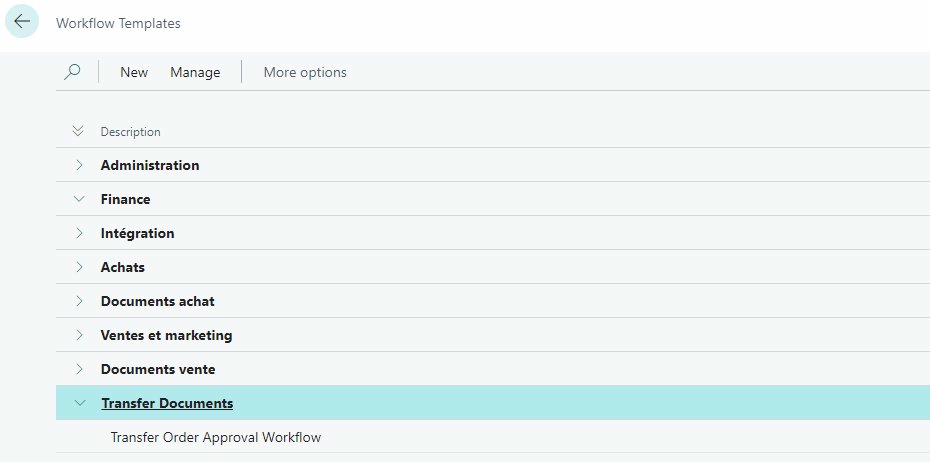
Workflow Templates
You can automate the process of approving new or changed transfer orders by enabling the Transfer Order Approval workflow.
Workflow Process
The approval workflow ensures a smooth and structured process similar to standard Business Central approval workflows.
Workflow Notification
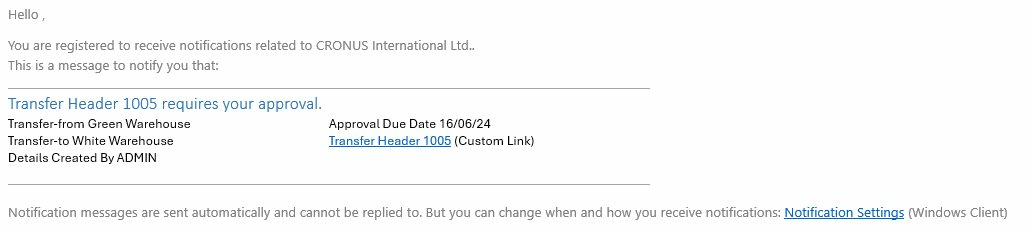
Email notifications within Business Central's approval workflows promptly inform users when their action is required.