Vendor Bank Account Approval Workflow
Protect your organization from payment fraud with Vendor Bank Account Approval Workflow for Microsoft Dynamics 365 Business Central. This extension ensures all vendor bank account changes are properly reviewed and approved before they can be used for payments—a critical control for financial compliance.
Key benefits: reduced fraud risk, automated approval routing, complete audit trail, and compliance with internal controls.
#Create Workflow from Template
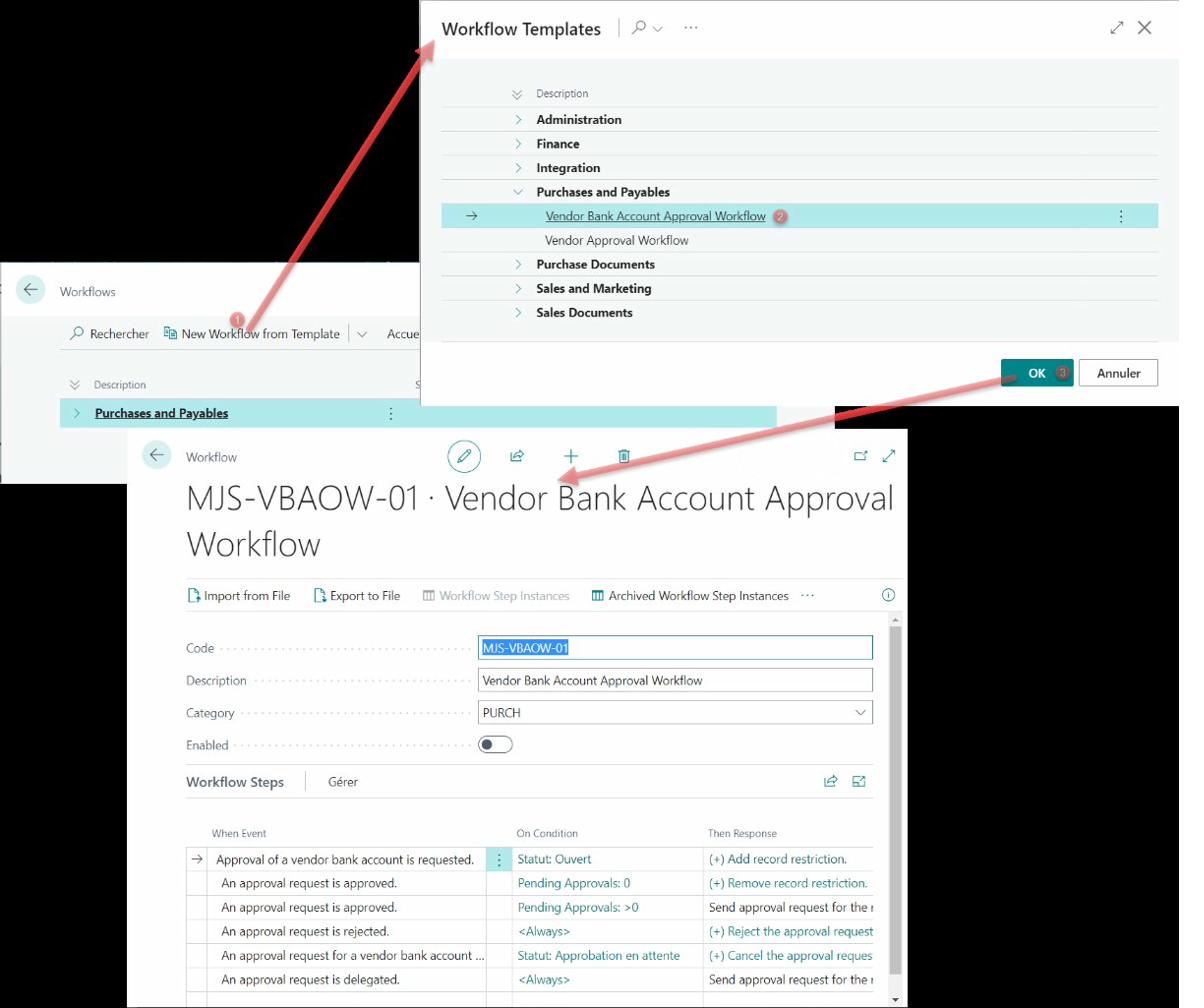
Business Central uses Workflow Templates as starting points for custom workflows. Our extension adds a ready-to-use template for vendor bank account approvals.
To create Vendor Bank Account approval workflow:
- Choose the search icon, enter Workflows, then choose the related link.
- Choose the New Workflow from Template action. The Workflow Templates page opens.
- Select Vendor Bank Account Approval Workflow, then choose OK.
#Vendor Bank Account Status
There are three possible statuses for vendor bank accounts:
- Open: Changes can be made to the account information.
- Pending Approval: The information is under review. No modifications can be made.
- Released: The bank account has been approved and all fields are locked.
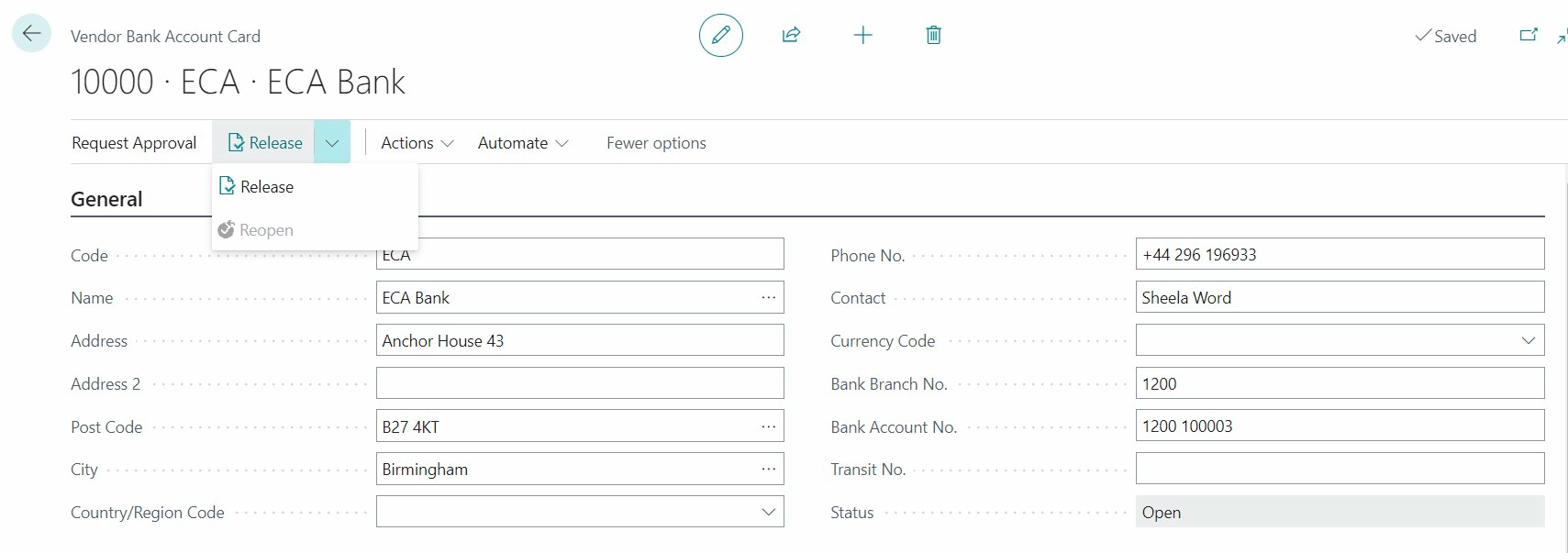
Once you send an approval request, you cannot use the "Reopen" function. You must cancel or complete the approval process to reopen the document.
#Send/Cancel Approval Request
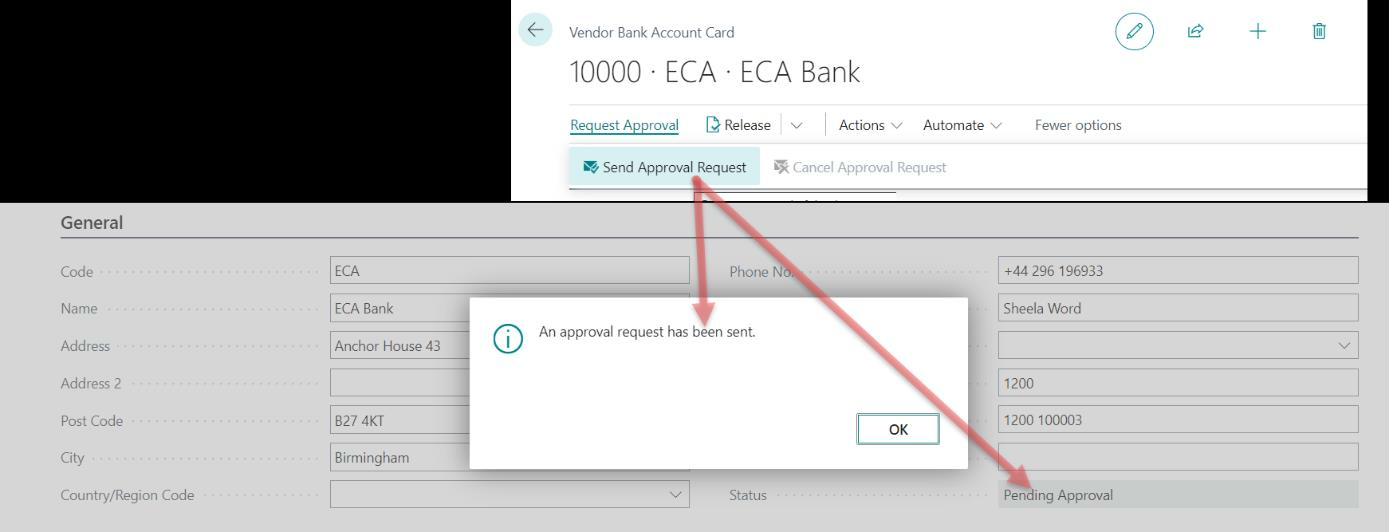
Send Approval Request
To initiate the approval process, click the Send Approval Request button. The system will create the approval request and change the status to "Pending Approval".
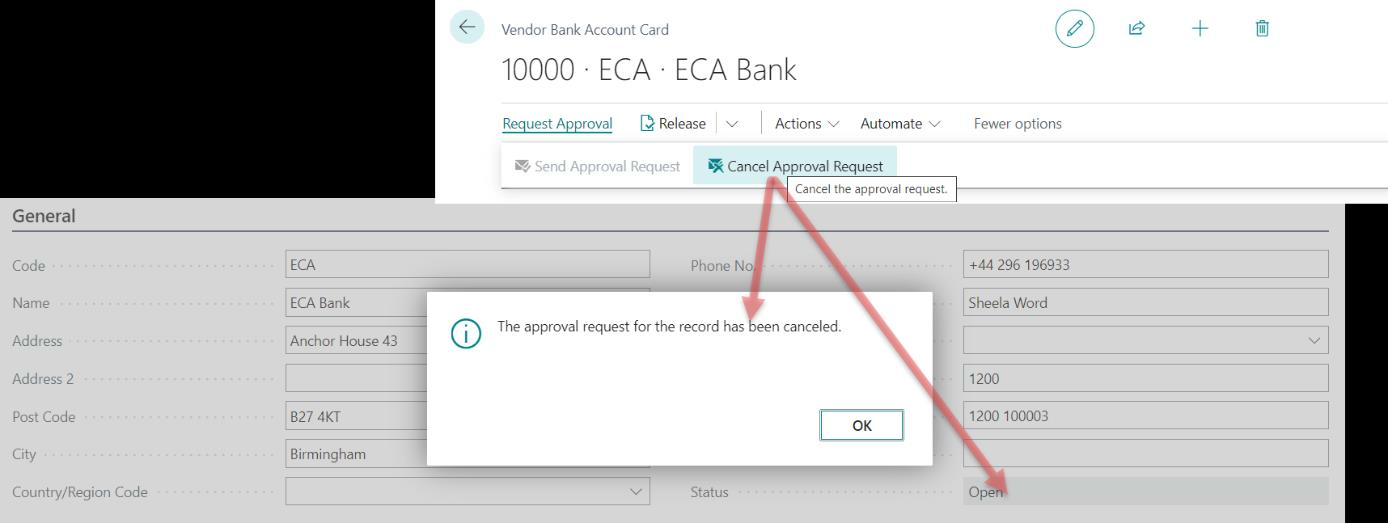
Cancel Approval Request
Click Cancel Approval Request to cancel the request and return the status to "Open".
#Approval Actions
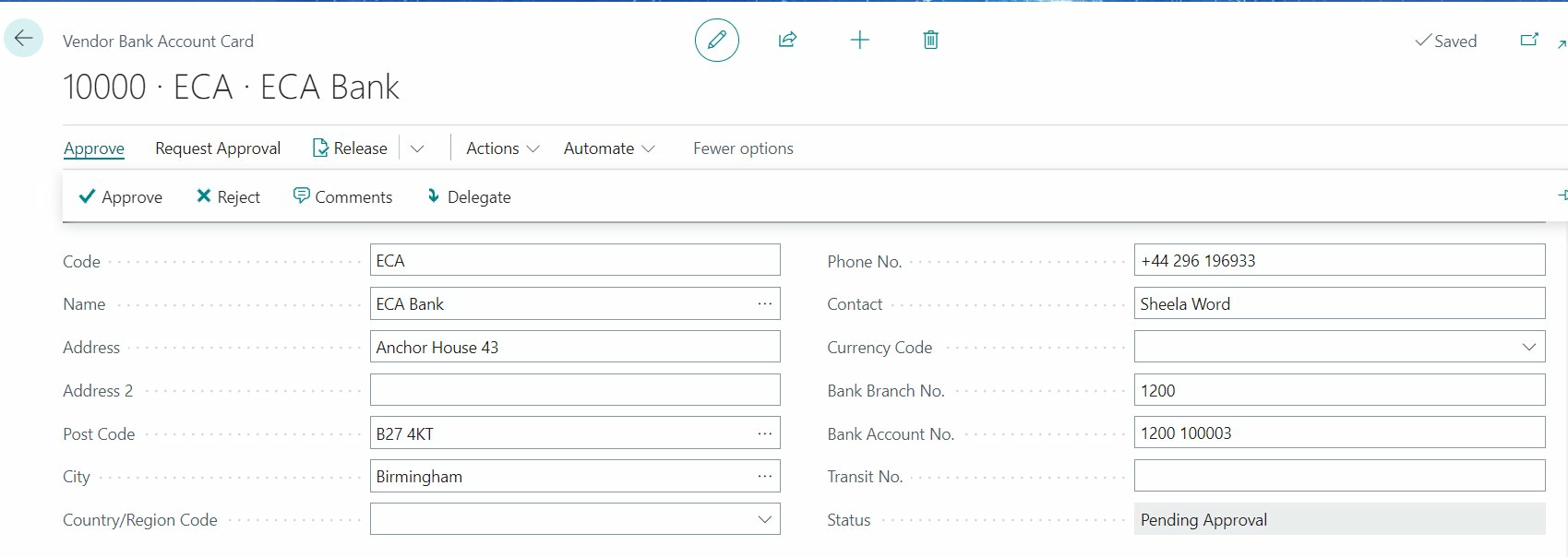
The approver has three options: Approve, Reject, or Delegate. These can be accessed from the Vendor Bank Account card or the Requests to Approve page.

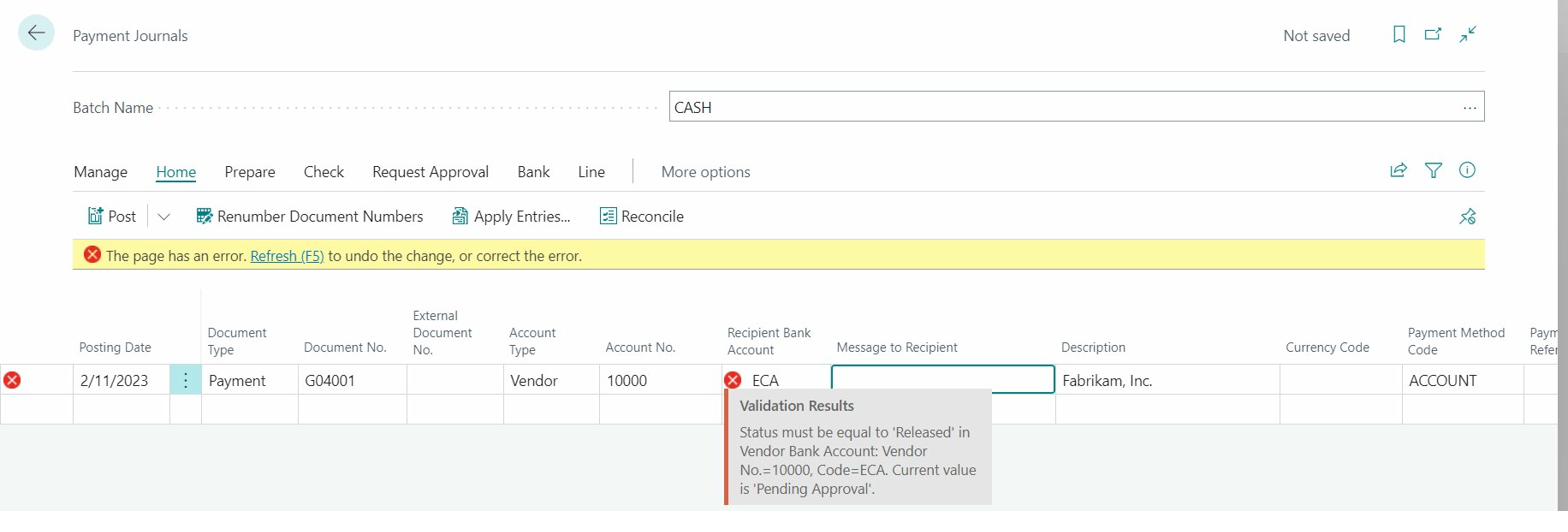
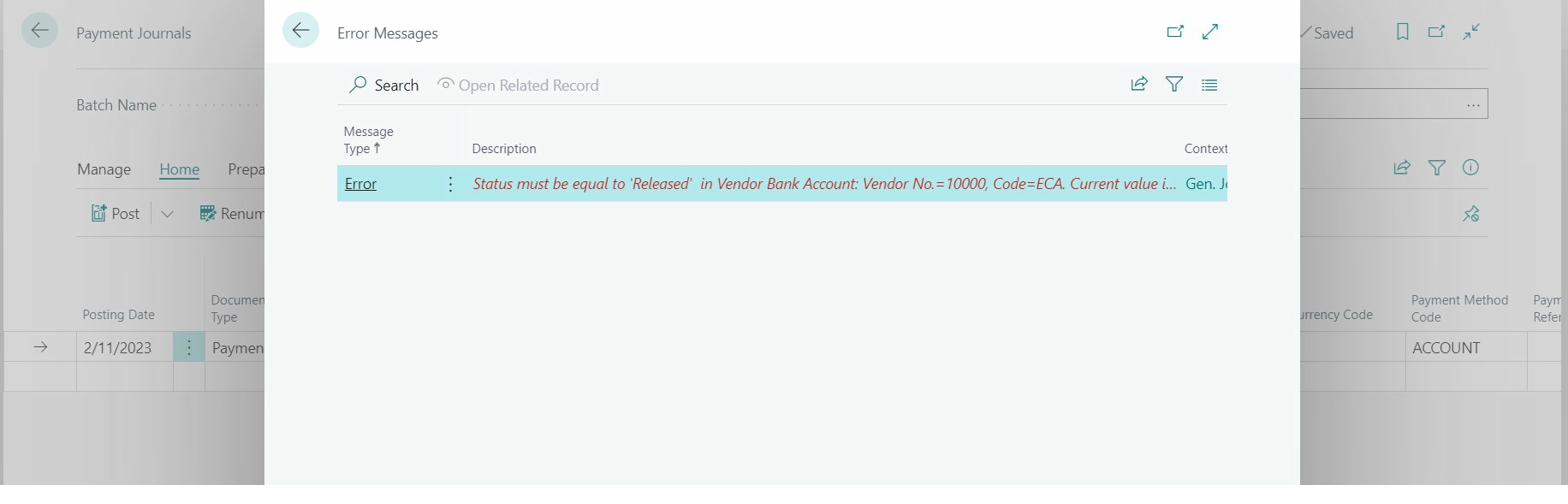
#Payment Journal Restrictions
Payment Journal Restrictions prevent the use of unapproved vendor bank accounts, ensuring only approved accounts can be used for payments.