
Customer Bank Account Approval Workflow
The Customer Bank Account Approval Workflow app for Microsoft Dynamics 365 Business Central streamlines the process of approving customer bank accounts. Similar to the Vendor Bank workflow, it ensures consistency, efficiency, and transparency while providing a clear audit trail for compliance.
#Create Workflow from Template
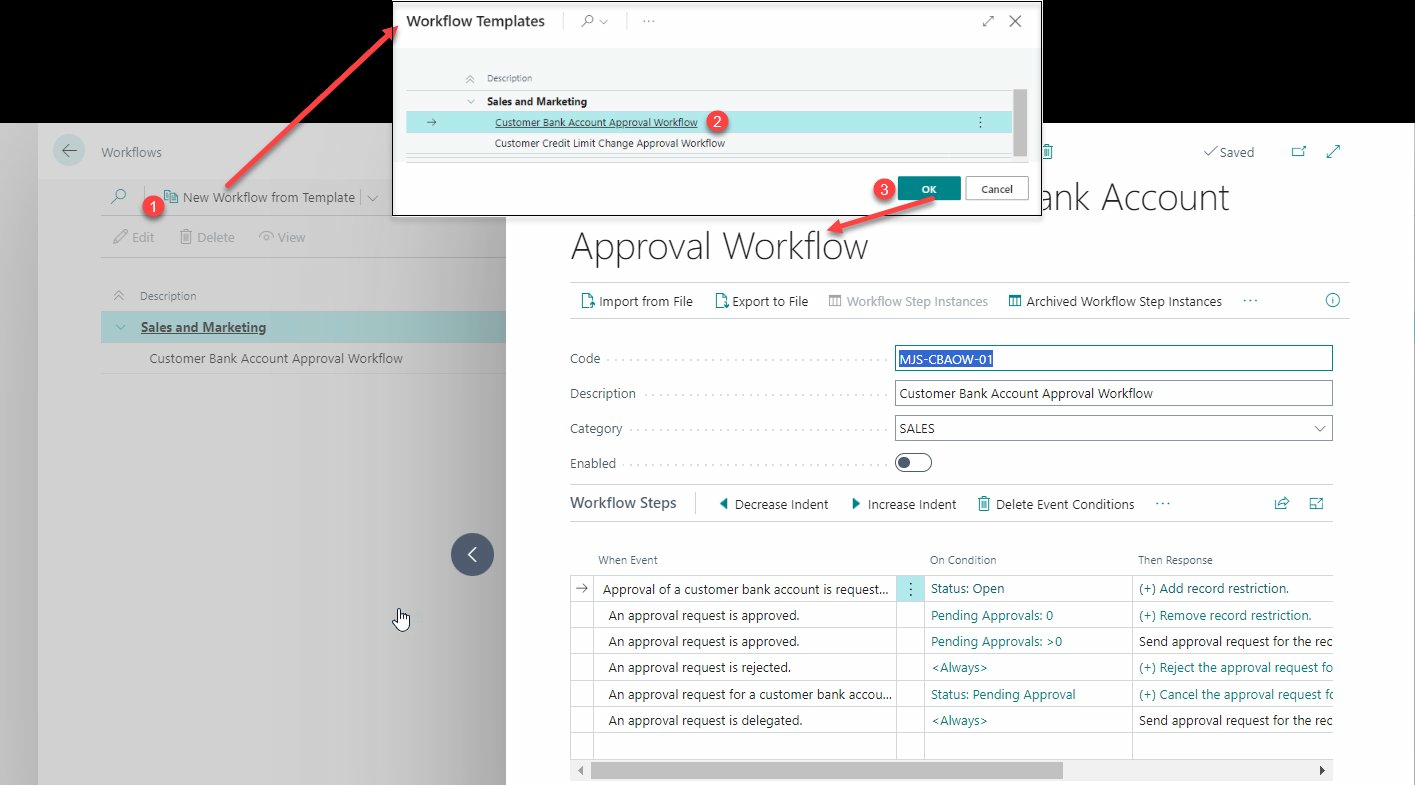
To create Customer Bank Account approval workflow:
- Choose the search icon, enter Workflows, then choose the related link.
- Choose the New Workflow from Template action.
- Select Customer Bank Account Approval Workflow, then choose OK.
#Customer Bank Account Status
There are three possible statuses:
- Open: Changes can be made to the account information.
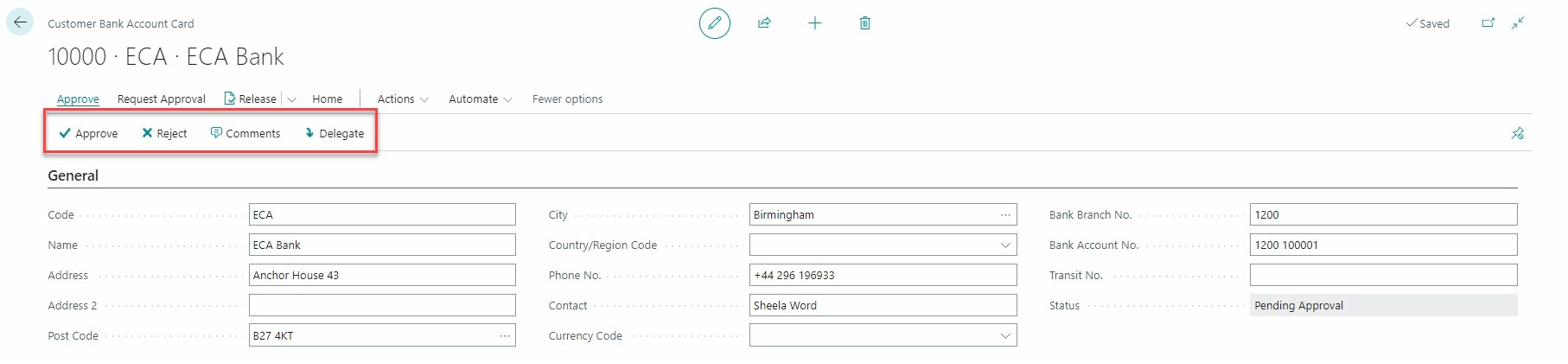
- Pending Approval: The information is under review. No modifications can be made.
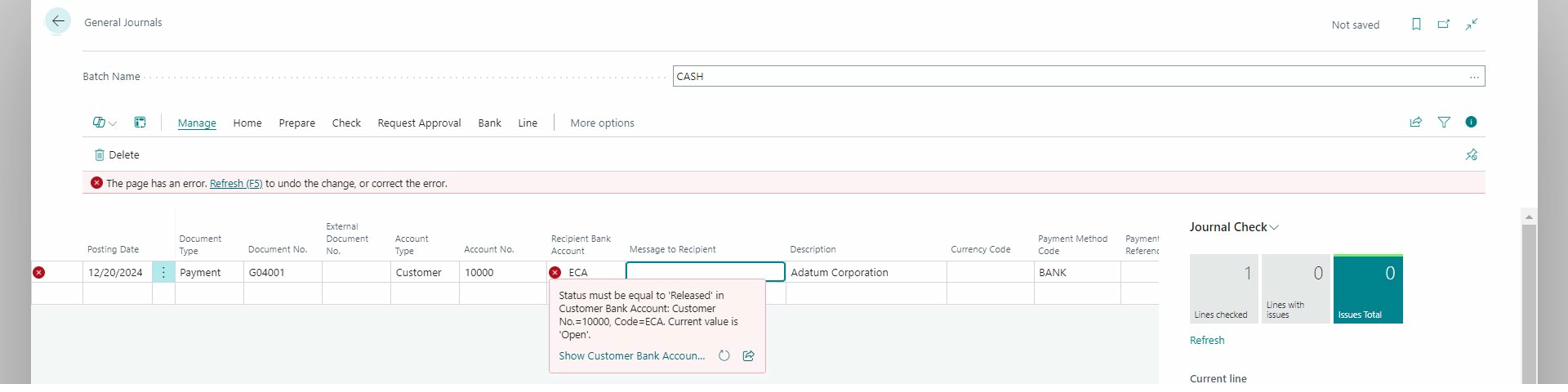
- Released: The bank account has been approved and all fields are locked.
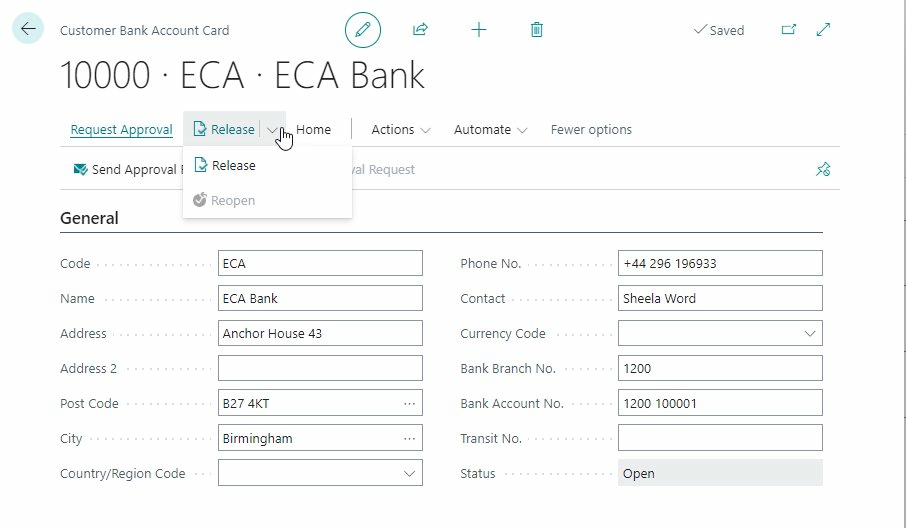
Once you send an approval request, you cannot use the "Reopen" function. You must cancel or complete the approval process to reopen the document.
#Send/Cancel Approval Request
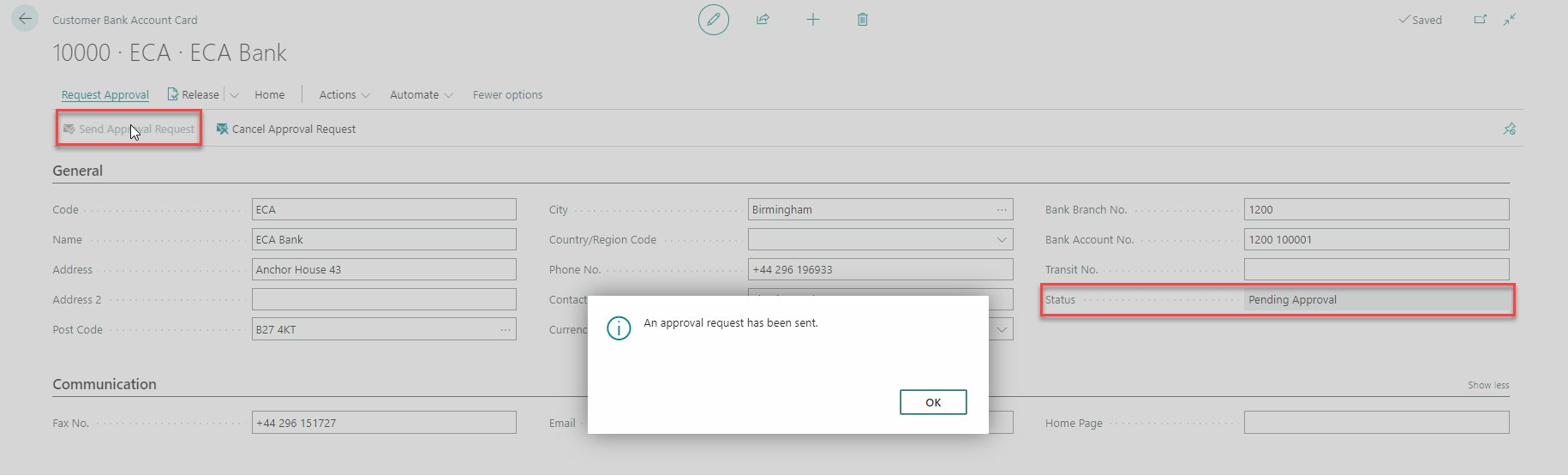
Send Approval Request
Click the Send Approval Request button to initiate the approval process. The status changes to "Pending Approval".
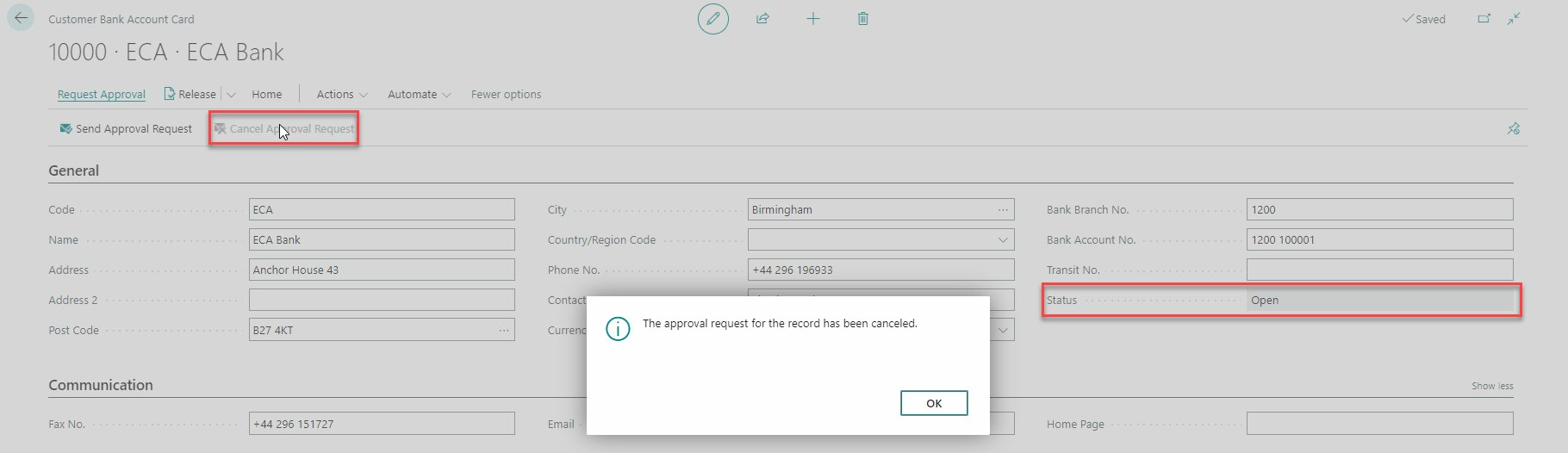
Cancel Approval Request
Click Cancel Approval Request to cancel the request and return the status to "Open".
#Approval Actions
The approver has three options: Approve, Reject, or Delegate.

#Journal Restrictions
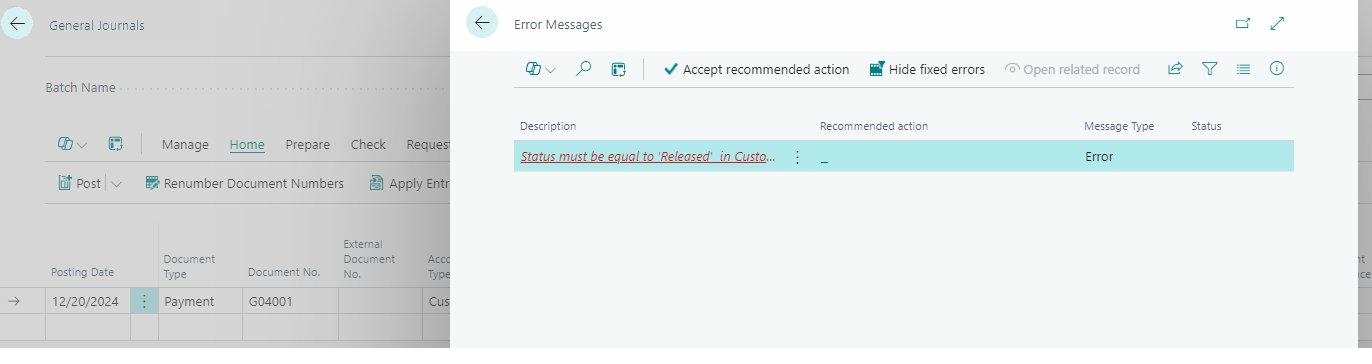
Journal Restrictions prevent the use of unapproved customer bank accounts, ensuring only approved accounts can be used.
#Support
For technical support: support@amjs-consulting.com