Item Journal Approval Workflow
The Item Journal Approval Workflow app for Microsoft Dynamics 365 Business Central implements a comprehensive control and approval system. This robust workflow solution ensures accuracy, compliance, and operational efficiency across multiple journal types.
#Supported Journal Types
This workflow supports the following journals:
- Physical Inventory Journals — Managing stock counts and inventory adjustments
- Item Journals — Handling general item transactions
- Item Reclassification Journals — Modifying item classifications
- Recurring Item Journals — Managing repetitive item transactions
- Item Revaluation Journals — Updating item values and costs
- Capacity Journals — Recording resource capacity
- Consumption Journals — Tracking material usage
- Output Journals — Documenting production output
#Workflow Template
To create an Item Journal approval workflow:
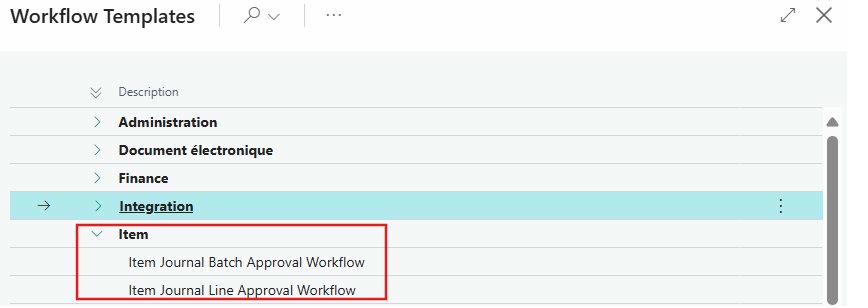
- Choose the search icon, enter Workflows, then choose the related link.
- Choose the New Workflow from Template action.
- Select either Item Journal Batch Approval Workflow or Item Journal Line Approval Workflow.

Configure On Condition
You can set specific conditions to determine when the workflow should be triggered by filtering on any field from the Item Journal Batch or Line table.
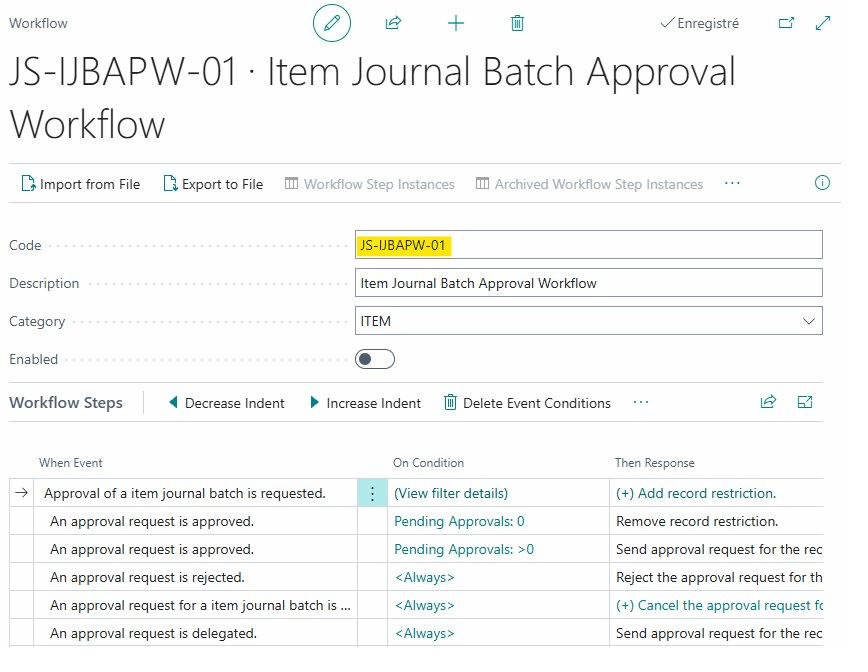

#Item Journal Batch Approval Workflow
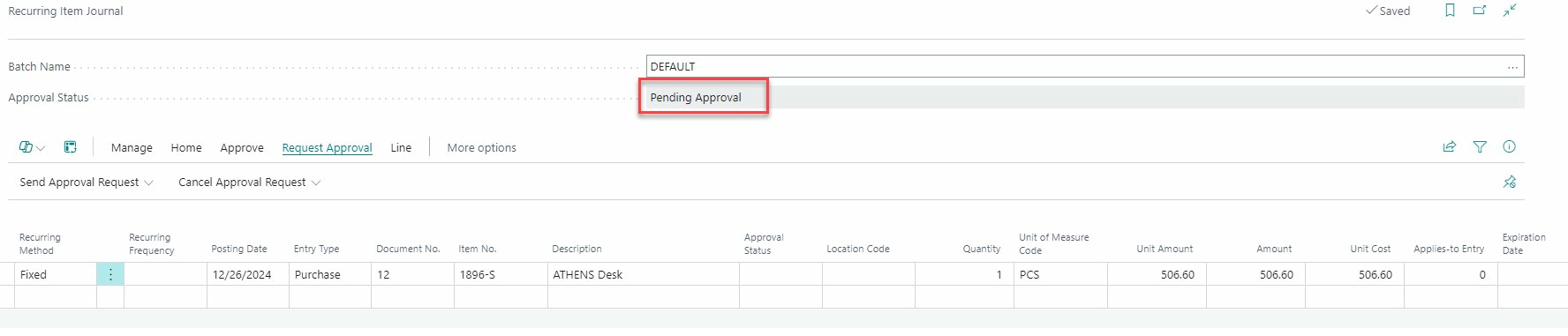
When using the Item Journal Batch Approval Workflow, the Approval Status field appears below the Batch Name.
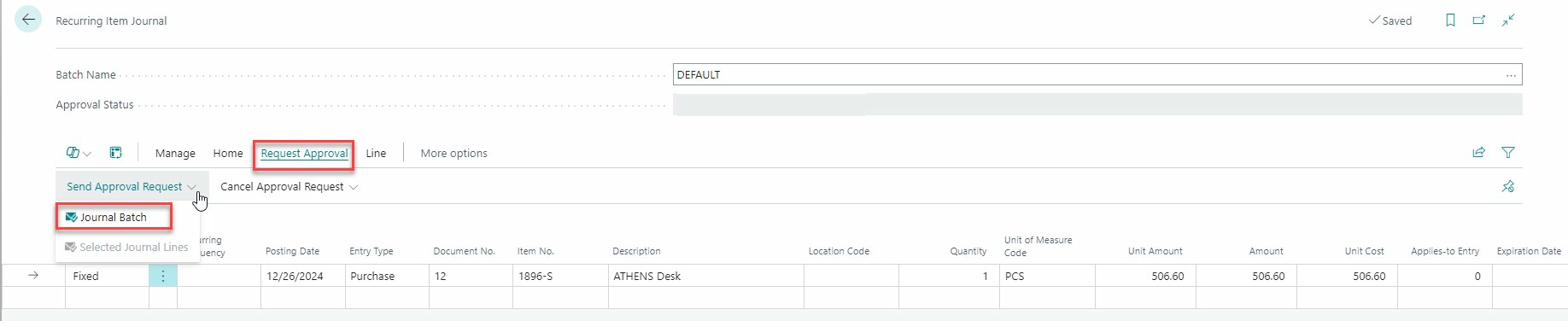
Sending Approval Request for Journal Batch
To send the approval request, click on Send Approval Request → Journal Batch. The system will send an approval request, restrict the journal from being modified, and change the status to "Pending Approval".
Cancel Approval Request for Journal Batch
Click on Cancel Approval Request → Journal Batch to cancel the request, remove the restriction, and change the status to "Canceled".

#Item Journal Line Approval Workflow
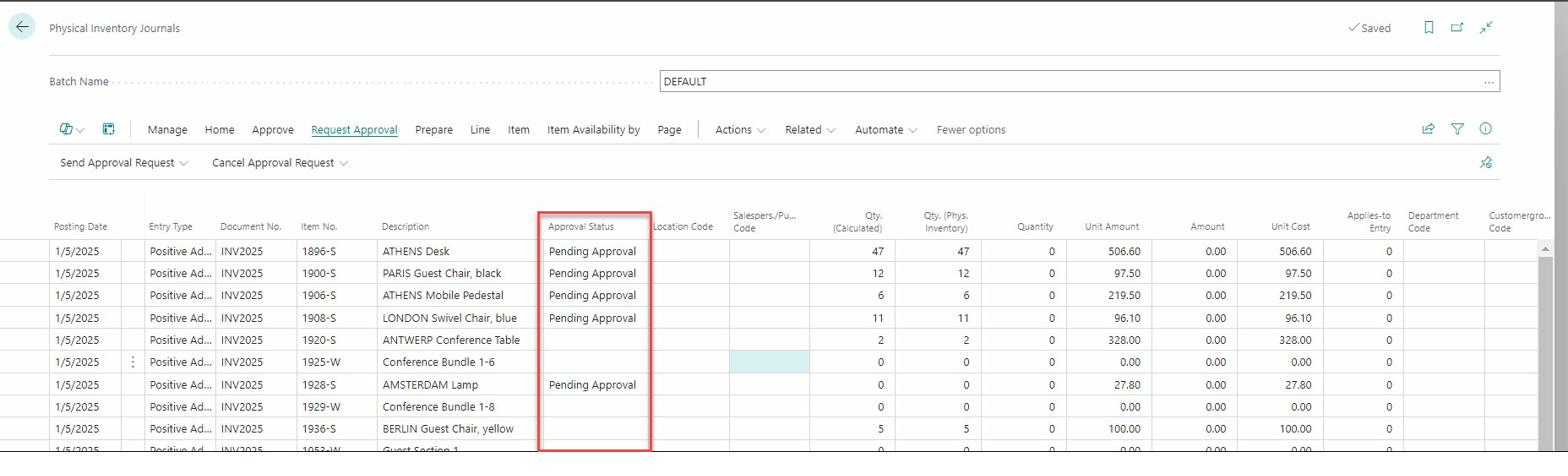
When using the Item Journal Line Approval Workflow, the Approval Status field is displayed on each line.
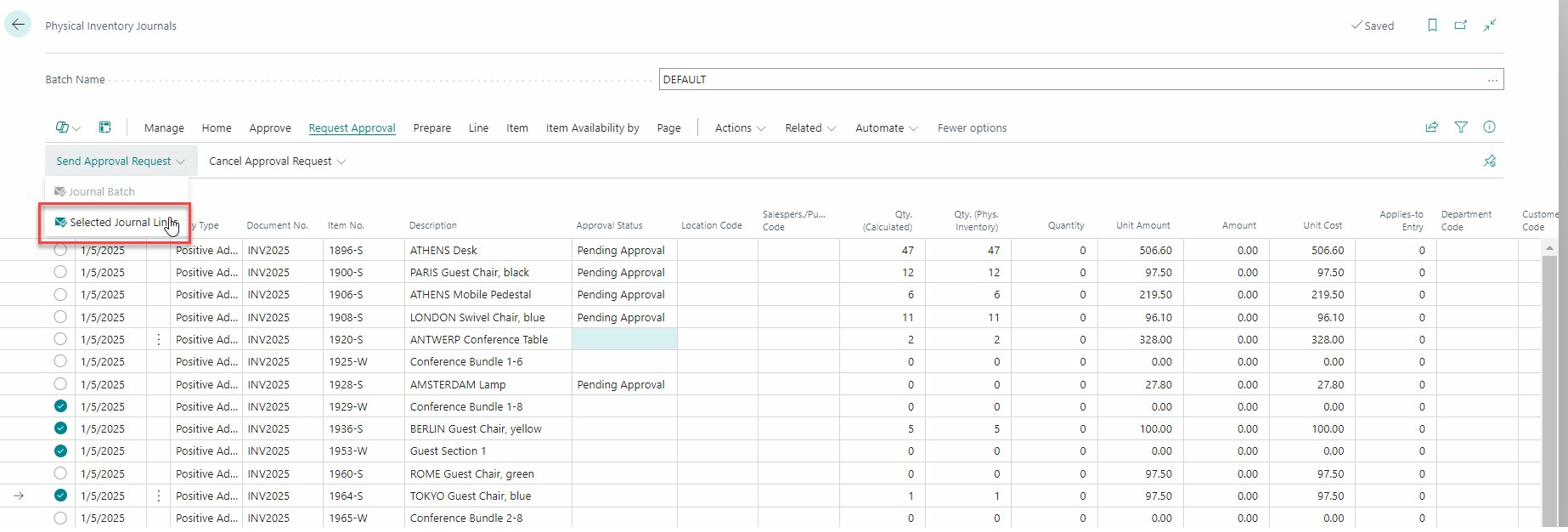
Sending Approval Request for Journal Line
To send the approval request, click on Send Approval Request → Selected Journal Line. Only selected lines will be sent for approval.
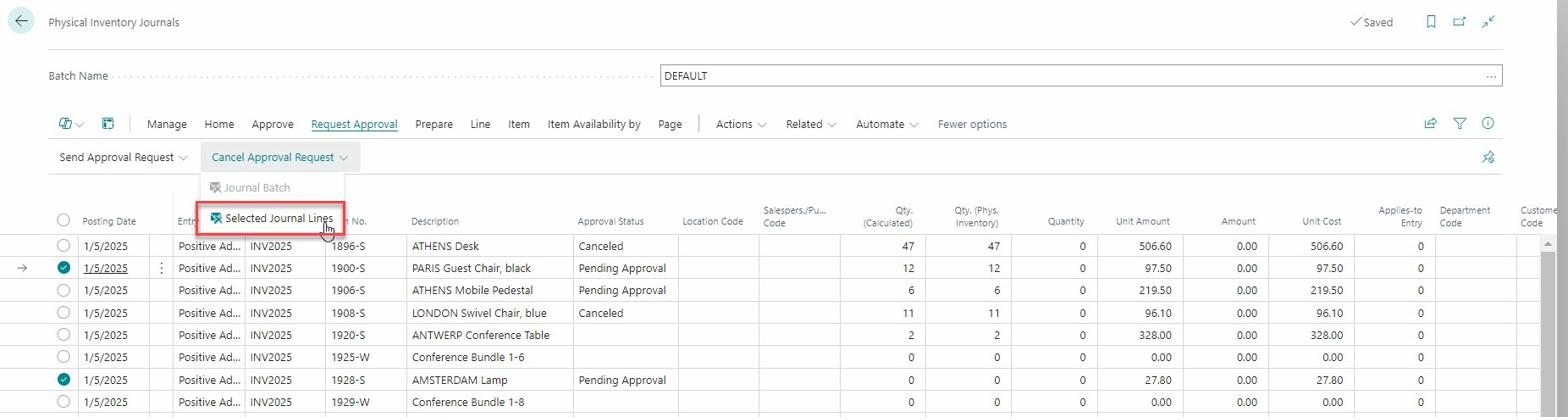
Cancel Approval Request for Journal Line
Click on Cancel Approval Request → Selected Journal Line to cancel the request for selected lines only.
#Rules and Controls
When the approval workflow is enabled, specific controls are implemented:
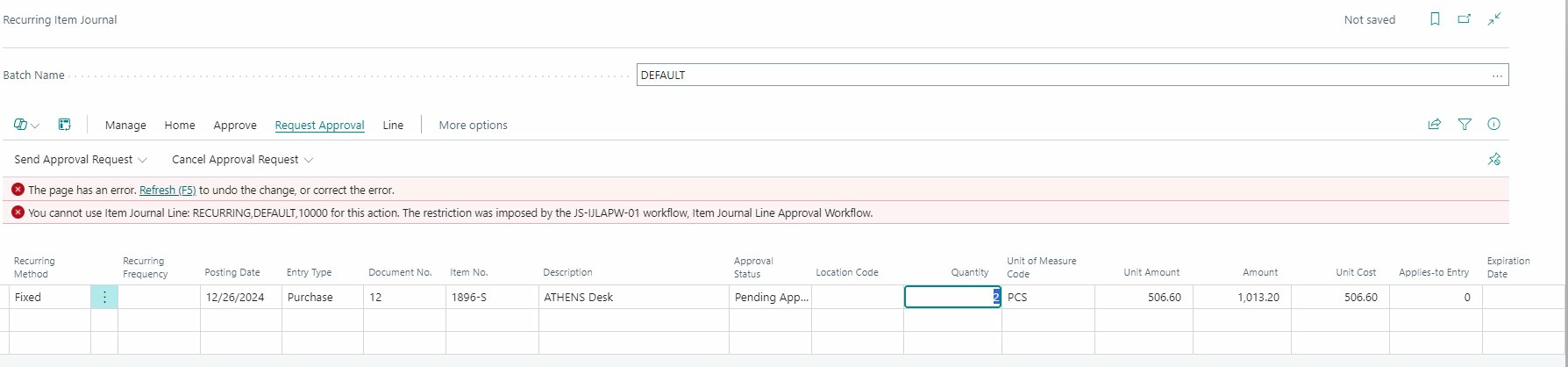
- The restriction applies when adding or modifying a line in the journal
- Once approved, the restriction is automatically removed
- Posting a journal is not allowed until it has been approved
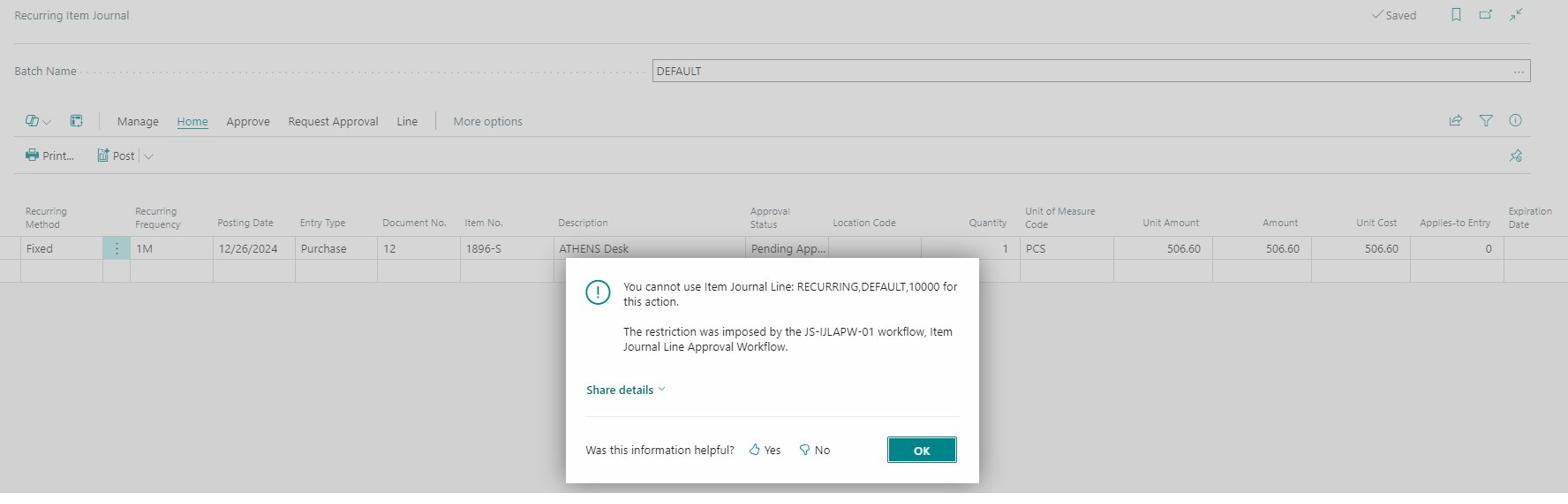
- A line cannot be modified if an approval request is pending
- Any modification to an already approved line reactivates the restriction